Accessibility in FlutterFlow: Building Apps That Everyone Can Use
Accessibility in FlutterFlow means designing and building apps that people with disabilities can use effectively, and it's not an afterthought—it's a core part of app development that should be integrated from the start. By following a structured framework, you can ensure your FlutterFlow app is inclusive, reaches a wider audience, and meets legal and ethical standards.
Introduction to the Framework
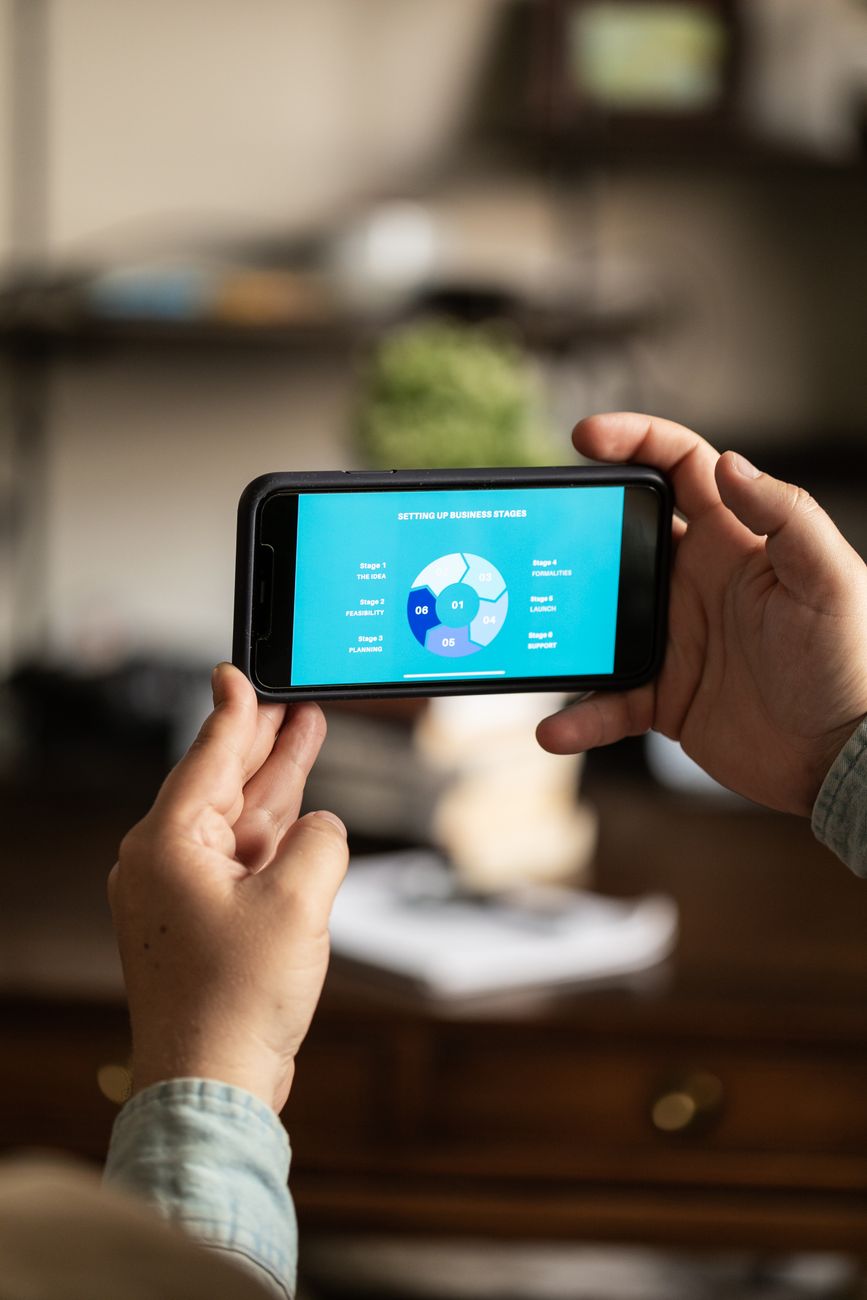
The Inclusive FlutterFlow Framework (IFF) is a five-step methodology for embedding accessibility into your app development process with FlutterFlow. It guides you from planning to testing, ensuring that accessibility is considered at every stage. This framework is designed to be practical and actionable, whether you're a business owner hiring a development agency or a developer building an app yourself.
The framework addresses the unique challenges and opportunities of building accessible apps with FlutterFlow, which is a low-code platform for creating Flutter applications. By following these steps, you can create apps that are usable by everyone, regardless of their abilities.
Why This Framework Works
This framework works because it transforms accessibility from a vague concept into a concrete, repeatable process. Instead of bolting on accessibility features at the end—which often leads to poor results and costly rework—you integrate them from the initial design and development phases.
Moreover, it aligns with FlutterFlow's strengths: fast app development and high-quality applications. When you bake accessibility into your workflow, you avoid time-consuming fixes later. It also supports scalable solutions, as accessible code and design patterns are easier to maintain and extend. For businesses, this means you're not only building an app that's right for all users but also one that's built to last and grow.
How to Apply the Framework: 5 Steps to Inclusive App Design
Step 1: Plan for Accessibility from Day One
Start your project by defining accessibility goals. What does accessibility mean for your specific app? Consider your target audience and the potential barriers they might face. For example, if you're building a shopping app, ensure that all product images have descriptive alt text. If you're building a fitness tracker, make sure the interface is usable with a screen reader.
Create a checklist that includes accessibility requirements, such as color contrast, touch target sizes, and keyboard navigation. This checklist will guide your design and development efforts.
A practical tip: write user stories that include people with disabilities. For instance, “As a visually impaired user, I can navigate the app using a screen reader without encountering errors.” This helps your team understand the goals and keeps accessibility at the forefront.
Step 2: Design with Accessibility in Mind
Design is the foundation of accessibility. In FlutterFlow, you have full control over the visual design, but you must ensure it's inclusive. This means using sufficient color contrast, providing clear labels, and designing for various screen sizes.
Color contrast is critical. Ensure that text has a contrast ratio of at least 4.5:1 against its background, a standard from the Web Content Accessibility Guidelines (WCAG). For large text (18pt or 14pt bold), the ratio can be 3:1. FlutterFlow's color picker can help you choose accessible color combinations, but you should verify them with a tool like WebAIM's Contrast Checker.
Also, design for flexibility. Users should be able to increase text size without breaking the layout. In FlutterFlow, you can set text styles to use relative units, allowing text to scale with system font settings.
Remember, an inclusive design benefits everyone. For example, captions on videos help not only deaf users but also people in noisy environments.
Step 3: Implement Accessibility Features in FlutterFlow
FlutterFlow provides several built-in features to enhance accessibility. Use semantic labels for interactive elements. For example, if you have an icon button that represents a “like,” set its semantic label to “Like” so screen readers announce it correctly.
Ensure that all interactive elements are accessible via keyboard and screen readers. FlutterFlow allows you to set the focus traversal order, making sure users can tab through the app in a logical sequence.
Also, test the app with TalkBack (Android) and VoiceOver (iOS) simulators during development. FlutterFlow's preview mode lets you test on various screen sizes, but for voice-over testing, you may need to run the app on a real device.
One common accessibility feature is dynamic type support. If your app uses fixed font sizes, visually impaired users who need larger text won't benefit. In FlutterFlow, you can set font sizes to use bodyMedium, headlineSmall, etc., which automatically scale with system settings.
Step 4: Test with Real Users and Tools
Automated testing tools can catch some issues, but they can't replace testing with actual users. Recruit people with disabilities to test your app. Their feedback will reveal usability problems that tools might miss.
Use accessibility audits: run your app through an accessibility scanner like Google's Accessibility Scanner (for Android) or Apple's Xcode Accessibility Inspector (for iOS). These tools identify issues like missing content descriptions, touch targets that are too small, or insufficient contrast.
Pay special attention to screen reader navigation. A good screen reader test involves navigating the entire app using only VoiceOver or TalkBack and verifying that all content is announced in a logical order.
A simple test: can a user complete a core task in your app without seeing the screen? Try performing the task with your eyes closed, using only a screen reader. This quick test can reveal many accessibility barriers.
Step 5: Iterate and Maintain Accessibility
Accessibility is not a one-time task. As your app evolves, you must continuously check and improve accessibility. Set up a process for ongoing testing and user feedback.
When you add new features, include accessibility in the definition of done. Create a checklist that every new feature must pass before release.
Also, stay informed about accessibility standards and best practices. They evolve, and so should your app.
For businesses, maintaining accessibility may also mean providing documentation and training for your team. This ensures that everyone involved in the app's lifecycle understands the importance of inclusive design.
Examples/Case Studies
While we can't share specific client names due to confidentiality, we can illustrate how the framework applies in common scenarios.
Example: E-commerce App
Imagine an e-commerce app built in FlutterFlow. The client wants to reach a broader market. The team applies the framework:
- Planning: They identify that the app must be navigable via screen readers for blind users. They note that all product images need alt text.
- Design: They choose a color scheme with high contrast, and ensure that buttons are at least 48x48 pixels for easy tapping.
- Implementation: They use FlutterFlow's semantic labels for all actionable icons, and set the focus order so that users can quickly jump to the search bar.
- Testing: They test with TalkBack and VoiceOver, and recruit a few visually impaired users to navigate the app. They fix issues like unlabeled buttons and confusing navigation.
- Iteration: After launch, they monitor feedback and release a update that adds screen reader support for the new feature.
Result: The app is accessible to a wider audience, leading to increased user satisfaction and sales.
Example: Productivity App
A startup uses FlutterFlow to build a task management app. They want to support users with motor impairments who may rely on voice control or switch devices.
- Planning: They set a goal that every task can be added, edited, and completed using voice commands.
- Design: They ensure that all interactions can be performed with a single tap (or a single click). They avoid complex gestures.
- Implementation: They use FlutterFlow's action triggers to map voice commands to actions. They also add accessibility hints for users using switch controls.
- Testing: They test with a switch device and voice control. They discover that a drag-and-drop feature is inaccessible, so they replace it with a simple tap-to-move function.
- Iteration: They add a feature that lets users enlarge text, which also benefits those with low vision.
Result: The app is usable by people with various motor and visual impairments, setting it apart from competitors.
Common Mistakes to Avoid
-
Treating Accessibility as an Afterthought Adding accessibility features at the end is always more expensive and less effective. It can also lead to a disjointed user experience.
-
Ignoring Color Contrast Many developers assume that if text is legible to them, it's legible to everyone. But not everyone has perfect vision. Use contrast checkers and follow WCAG guidelines.
-
Overlooking Keyboard Navigation Some users cannot use a mouse or touchscreen. They rely on keyboard navigation. Ensure that all interactive elements can be reached and activated with the keyboard.
-
Failing to Test with Real Users Automated tools are helpful, but they can't understand the nuances of human interaction. Real user feedback is invaluable.
-
Using Only Visual Cues If you indicate an error with color alone (e.g., a red outline), users who are colorblind or using a screen reader might miss it. Always pair visual cues with text or symbols.
-
Assuming You Know What's Accessible Accessibility guidelines are constantly evolving. What was considered accessible a few years ago might not be today. Keep learning and testing.
Templates and Tools
FlutterFlow itself is a powerful tool for building accessible apps. It allows you to inspect and adjust semantic labels, accessibility actions, and hints for each widget.
Here are some free tools to help you test accessibility:
- Lighthouse (in Chrome DevTools) - audits web apps for accessibility.
- Accessibility Scanner (Android) - scans your app and suggests fixes.
- Xcode Accessibility Inspector (iOS) - helps you inspect the accessibility tree.
- WebAIM Contrast Checker - verifies color contrast.
- axe - a browser extension for automated accessibility testing.
A simple template for your accessibility review:
| Feature | Requirement | Status | Notes |
|---|---|---|---|
| Alt text for images | Present and descriptive | ||
| Button size | At least 48dp | ||
| Text contrast | 4.5:1 | ||
| Label on all form fields | Yes | ||
| Screen reader order | Logical | ||
| Keyboard navigation | Works |
Accessibility as a Business Advantage
Building an accessible app is not just about compliance; it's a smart business move. Around 15% of the world's population lives with some form of disability. By ignoring accessibility, you're excluding a significant market segment. Moreover, accessible apps often provide a better user experience for everyone. For example, clear labels and generous touch targets benefit all users, not just those with disabilities.
In competitive markets like mobile app development, accessibility can differentiate your product. It shows that you care about all users, which builds trust and can increase customer loyalty.
Moreover, accessibility is often a legal requirement for public sector organizations and increasingly for private businesses. Non-compliance can lead to lawsuits and fines. By integrating accessibility into your app development process, you reduce legal risks.
Conclusion: Build Inclusively, Grow Faster
Accessibility in FlutterFlow isn't just a nice-to-have; it's a necessity for reaching a broader audience and building a reputable brand. By following the Inclusive FlutterFlow Framework—plan, design, implement, test, and iterate—you can create apps that are usable by everyone.
This framework not only helps you avoid pitfalls but also enhances your development process, making it more efficient and cost-effective. It aligns with FlutterFlow Agency's values of fast development, high-quality applications, and expert guidance. When you build with accessibility in mind, you're investing in your users and your business's future.
If you're ready to build an app that everyone can use, consider partnering with FlutterFlow Agency. Our team is experienced in creating accessible, high-quality applications using FlutterFlow. We can help you navigate the complexities of app accessibility design and inclusive app design. Contact us for a free consultation.
Note: The framework outlined in this article is a practical approach based on industry best practices. While it provides a solid foundation, each app is unique, and accessibility requirements may vary based on your specific audience and legal context.