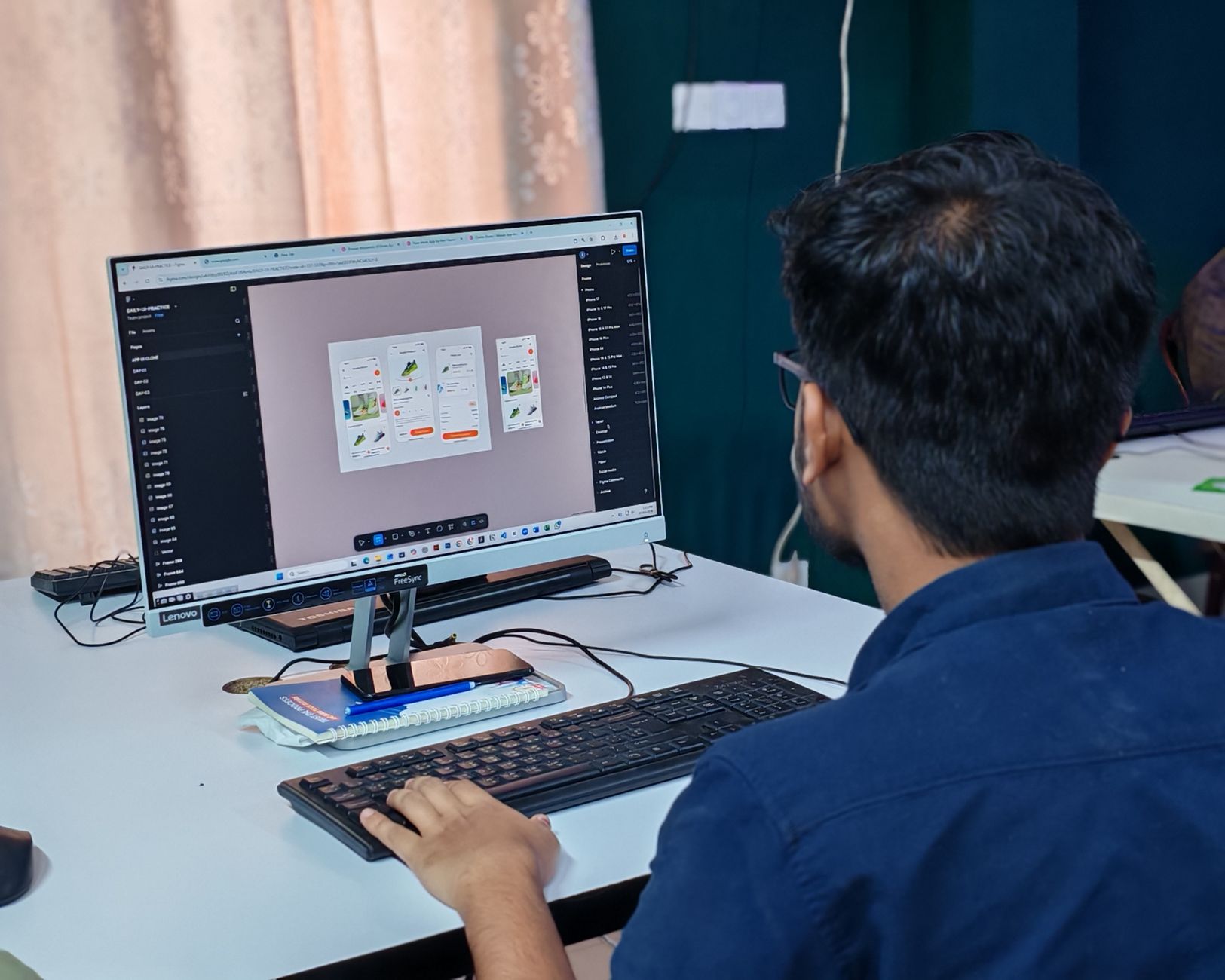
How to Build Your First Mobile App with FlutterFlow in 2024
Building a mobile app from scratch used to require months of coding and a team of developers. In 2024, FlutterFlow changes that. FlutterFlow is a low-code platform that enables you to visually build native mobile apps for iOS and Android, all from a single codebase. Whether you’re a business owner with a great idea, a freelancer looking to expand your skills, or a startup founder wanting to launch an MVP quickly, this guide will walk you through your first app—step by step.
What Is FlutterFlow and Why Use It in 2024?
FlutterFlow is a browser-based drag-and-drop builder that creates Flutter code. Flutter itself is Google’s UI toolkit for building natively compiled applications from a single codebase. By combining Flutter’s power with a visual interface, FlutterFlow dramatically reduces development time.
Key benefits of FlutterFlow in 2024:
- Speed: Build a functional prototype in days, not months.
- No-code/low-code: Design UI and logic without writing code (though you can add custom code if needed).
- Real-time preview: See changes instantly on a simulated device.
- Integration-friendly: Connect to Firebase, REST APIs, and more.
- Scalable: Generated Flutter code is maintainable and extensible.
According to a 2023 industry report, low-code platforms like FlutterFlow reduce development time by up to 60%. This makes them ideal for businesses wanting to test ideas quickly.
Prerequisites: What You Need Before Starting
Before diving into FlutterFlow, ensure you have:
- A FlutterFlow account (free tier available at flutterflow.io).
- Basic understanding of app concepts (screens, navigation, buttons). No coding experience is required, but it helps.
- Clear idea of your app’s purpose (e.g., a todo list, a business card, a simple chat).
- Design assets (optional) like logos, colors, and fonts.
Optional but recommended:
- A Google account for Firebase integration.
- Familiarity with the FlutterFlow documentation.
Step 1: Create a New FlutterFlow Project
Log into FlutterFlow and click Create Project. Choose a template or start from a blank project. For this tutorial, select the Blank App template.
A dialog will ask for your project name (e.g., “MyFirstApp”) and team. Keep default settings for now, then click Create. FlutterFlow generates a basic Flutter project structure with a single home page.
The interface has three main areas:
- Canvas: Center area where you design the UI.
- Widget Panel: Left sidebar with all available components.
- Properties Panel: Right sidebar to configure selected widgets.
Step 2: Design the First Screen – UI Basics
Adding and Configuring Widgets
Every app is a tree of widgets. On the Widget Panel, drag a Column onto the canvas (the default Page contains a Column already). Inside it, add:
- Text widget for your title.
- Container for styling.
- Button for user action.
For example, to create a welcome screen:
- Select the existing
Columnin the widget tree (left panel). - Add a
Textwidget from the panel. In the properties panel, set the text to “Welcome to MyApp” and increase font size to 24. - Add a
Buttonbelow the text. Set its label to “Get Started”.
Styling with Theme
Go to Theme (top menu) to set global colors and fonts. For a professional look, choose a primary color (e.g., blue #007BFF) and a secondary color. FlutterFlow updates all widgets automatically.
Tip: Consistency in design improves user trust. Use a maximum of 3 colors and 2 font families.
Step 3: Add Navigation and Multiple Screens
Most apps have more than one screen. FlutterFlow uses Page widgets for each screen.
- In the widget tree, click + Add Page (bottom of the tree).
- Name the new page “SecondPage”.
- Design a simple info page (e.g., a text widget describing your app).
Now, set up navigation from the first page to the second:
- Select the Button on the first page.
- In the properties panel, find Actions → Add Action → Navigate to Page.
- Choose “SecondPage” from the dropdown.
Preview by clicking Run (top bar) – a full-screen preview opens in a new tab. Click the button to see the navigation work.
Step 4: Add Functionality with Actions and Backend
Use Actions for Logic
Actions allow you to add complex logic without code. Examples:
- Alert Dialog: Show a message when a button is pressed.
- Set/Update Variable: Save user input.
- Open URL: Launch an external link.
To show an alert: Select a button → Actions → Alert Dialog → Set title and description.
Connect to a Backend (Firebase)
Most mobile apps need data persistence. FlutterFlow integrates seamlessly with Firebase. To connect:
- Go to Settings & Integrations (left sidebar) → Firebase.
- Create a Firebase project (console.firebase.google.com) and download the
google-services.json(Android) andGoogleService-Info.plist(iOS) files. - Upload these files in FlutterFlow.
- Enable Firestore Database (Cloud Firestore) in Firebase.
Once connected, you can:
- Store data: Use Create Record action to save data.
- Read data: Use Query Collection to fetch records.
- Realtime updates: FlutterFlow automatically listens to Firestore changes.
Example: Simple To-Do App
Create a to-do app with a text input and a button to add tasks:
- Add a TextField widget for the task name.
- Add a Button with action Create Record pointing to a Firestore collection
tasks, with a fieldnameset to the text field value. - Add a ListView to display tasks, using Query Collection from
tasks.
When you run the app, you can add tasks and see them appear instantly.
Step 5: Testing and Previewing Your App
FlutterFlow provides multiple testing options:
- Run (web preview): Instantly test in your browser.
- FlutterFlow Mobile App: Download the FlutterFlow Companion app on iOS or Android to preview on a real device.
- APK/IPA Export: Download a debug APK for Android to share with testers.
For full testing, we recommend generating a Test Build (available on paid plans). This lets you install the app on devices without the companion app.
Step 6: Exporting and Publishing to App Stores
When you’re ready to publish, FlutterFlow allows you to download the source code (Flutter project) or build directly to stores.
Downloading the Code
Go to Export → Source Code → Download the zip file. This contains all the Flutter code that you can open in Android Studio or VS Code. You can then generate store-ready builds using Flutter’s CLI.
Building via FlutterFlow (Paid Plans)
On the Publish tab, you can configure:
- App Icons
- Splash Screen
- Bundle ID / Package Name
- Version Number
Then click Submit for Review for Google Play or Submit for App Store Review – FlutterFlow handles the build process and submits directly if you have the required credentials configured.
Important: Before publishing, thoroughly test all flows and edge cases. Use Firebase Crashlytics to monitor issues (integration available in Settings).
Best Practices for Building with FlutterFlow
- Plan before you build: Sketch your app’s screens and user flow on paper.
- Use reusable components: Create Custom Widgets for UI parts you repeat (like cards or buttons).
- Optimize performance: Avoid deeply nested widgets; use ListView.builder for large lists.
- Keep code clean: If you add custom code, organize it in separate files.
- Stay updated: FlutterFlow releases new features monthly. Join their community for tips.
Common Mistakes to Avoid as a Beginner
| Mistake | How to Avoid |
|---|---|
| Skipping the planning phase | Spend one hour mapping screens and user interactions. |
| Overcomplicating design | Start simple; add complexity later. |
| Not testing on real devices | Always preview on the Companion app. |
| Ignoring data structure | Plan your Firestore collections before building. |
| Forgetting responsive layout | Use Auto-layout features and test on different screen sizes. |
Conclusion
FlutterFlow makes building your first mobile app in 2024 faster and more accessible than ever. By following this guide, you’ve learned the fundamentals: setting up a project, designing a UI, adding navigation, connecting to a backend, testing, and preparing for publication. The best part is that you don’t need to be a seasoned developer—anyone can bring their app idea to life with FlutterFlow.
As a next step, explore more advanced topics like integrating third-party APIs, implementing user authentication, or building complex state management. Visit our FlutterFlow tutorials to dive deeper.
Ready to launch your first app? Start with the free plan today, and if you need expert guidance, our agency offers free consultations to help you scale from prototype to production.